

Apple Wallet push notifications, with 10 messages to copy
Apple Wallet push notifications are short messages that show on a customer's lock screen when you update a pass they saved. Google Wallet works in a similar way, but Google writes the alert text and allows three alerts per pass every 24 hours. In EpassCard, open Pass templates, click Send notification, write your message, and send or schedule it.
Key points:
- The customer must have saved your card in Apple Wallet or Google Wallet. No app is needed.
- On iPhone, the text of your message shows on the lock screen. Google decides how its alert looks.
- Google allows three message alerts per pass in 24 hours. Plan your week around that.
- Push messages are unlimited on every EpassCard plan, including Free.
What is an Apple Wallet push notification?
An Apple Wallet push notification is an alert that comes from a pass, not from an app. When you change something on the pass, the phone gets the new version and shows a short message. Your customer sees it like any other notification.
Under the hood, Apple compares the new pass with the old one. If a field has changed and that field has a change message, the phone shows that message (Apple Wallet Developer Guide). EpassCard handles this for you. Each message you send goes into a Message field on the back of the pass, so the customer can read it again later.
This is why wallet push needs no app. The card holder chose to save your card and can turn its alerts off at any time. So keep every message about that card: a reward, a balance, an expiry, an event change. Tapping the alert opens the pass in Wallet (Apple Support).
How do Apple Wallet and Google Wallet show the message?
Both wallets show an alert, but they do it in different ways. On iPhone, your words appear on the lock screen. On Android, Google shows its own alert, and your message sits on the pass. Google also caps how many alerts one pass can get.
| Apple Wallet | Google Wallet | |
|---|---|---|
| What the alert shows | Your message text | Google's own alert text; your message is on the pass |
| Where the message stays | Back of the pass | On the pass |
| Alert limit | No number in Apple's guide | 3 per pass in 24 hours |
| Links | Best kept to the pass topic | Must relate to the pass |
Google sets the limit in its developer rules. You can send three messages that trigger a push in a 24-hour period. Google may also slow your alerts if it thinks you are spamming people (Google for Developers, as of Oct 2026).
Apple gives no fixed number. Its guide says change messages interrupt the user, so use them for news that matters now. A delayed concert is a good reason. A new customer service phone number is not.
How do you send a push notification to every card holder?
You send a message to everyone who holds a card from one template. For most cards it takes five steps. The message goes to every saved card from that template, on both iPhone and Android.
- In the left menu, open Templates, then Pass templates.
- On the template you want, open the menu and click Send notification. Draft templates do not show this option.
- Write your message in Push Notification Content. To personalize it, use a placeholder from Available Placeholders at the top, such as {Name}.
- Leave Send notification immediately ticked to send now. To schedule it, untick the box and pick a Publication Date & Time and a Time Zone.
- Check the Live Preview on the right, then click Send Notification.
Using a stamp card? Stamp cards have their own list. Open Templates, then Stamp Card, and click Notify on the card. The same message page opens.
The update can take up to a minute to reach each phone. The page also reminds you of Google's limit. If a Google Wallet alert does not arrive, check whether that pass already got three alerts in the last 24 hours. Design edits count too, because EpassCard sends each Google pass an alert when the design changes.
Send a message to one card holder
Sometimes one person needs a note, such as "Your order is ready." Open that person's pass and click Send Push Notification. Type your text in the Message box, which takes up to 200 characters, and click Send Notification. The button only shows when the pass has been added to a wallet and is active.
Send from your own system
Your booking, membership or shop system can send messages too. The EpassCard API lets any system send a push to a pass. If you run WordPress, the post-Halloween push guide shows how to send wallet push messages from WordPress.
What makes a good wallet push message?
A good wallet push says one thing, says why it matters, and says when. Your customer reads it in two seconds on a lock screen. Write it so they know what to do without opening anything.
- Lead with the benefit. "Your free coffee is ready" beats "Loyalty update."
- Name the time. "Ends Sunday" or "Doors open at 6 pm" gives a reason to act.
- Keep it short. One sentence, two at most. Lock screens can cut long text.
- Use their name when it helps. "Hi {Name}" feels personal. Make sure the field is filled in on every pass.
- Change the words each time. Apple alerts when a value changes. The exact same text twice in a row may not alert again.
- Skip the link if you can. The card is already in their hand. If you add one, it must point to something about the pass.
- Tie it to the card. Apple's guide says change messages interrupt people and fit time-sensitive news. "Your reward is ready" or "Your coupon ends Sunday" fits. A general ad does not.
Placeholders use your own field names. If your template calls the field "First name", use {First name}, not {Name}.
10 push notification examples you can copy
These Apple Wallet push notifications work on Google Wallet too. Swap the placeholders for the field names in your template and the details for your own offer.
| Pass type | When to send | Message to copy |
|---|---|---|
| Stamp card | One stamp from a reward | Hi {Name}, one more stamp and your next coffee is on us. |
| Stamp card | A month since their last visit | Hi {Name}, your stamps are still on your card. Show it on your next visit. |
| Loyalty card | Points close to a reward | Hi {Name}, you have {Points} points. A few more and your reward is ready. |
| Loyalty card | A reward is waiting | Your reward is ready. Show this card on your next visit. |
| Membership card | Two weeks before renewal | Hi {Name}, your membership ends on {Expiry}. Renew at the front desk. |
| Membership card | Opening hours change | We open at 9 am on Thursday for the holiday. Your card works as usual. |
| Coupon | Two days before it ends | Your 20% off ends Sunday. Show this card at checkout. |
| Gift card | A balance is left | Hi {Name}, you still have {Balance} on your gift card. |
| Event ticket | The day of the event | Doors open at 6 pm. Have this ticket ready at the entrance. |
| Staff ID card | An office notice | The office is closed on Friday. Your card is not needed that day. |
A few notes on these. A points change already sends its own alert, with a message like "50 points added", so you do not need to send one. Messages for one person, like the stamp and last-visit ones, go from that person's pass page. The 20% off is your offer, so your register applies the discount. A renewal message does not take payment; it reminds the member to renew. Use these as a start and test what your customers answer best.
How often can you send, and when?
Send only when you have real news, and never more than Google's three alerts per pass in a day. Most businesses will do well with one or two messages a week. Send at a time when people can act, such as mid-morning for a lunch offer.
A few timing tips:
- Count design changes too. In EpassCard, a design edit updates every card with an alert. Avoid a design change on the same day as a campaign.
- Schedule for your customers' time zone. Pick the Time Zone where your customers are, not where you are.
- Plan seasonal pushes early. The post-Halloween guide linked above has more ideas for bringing people back after a holiday.
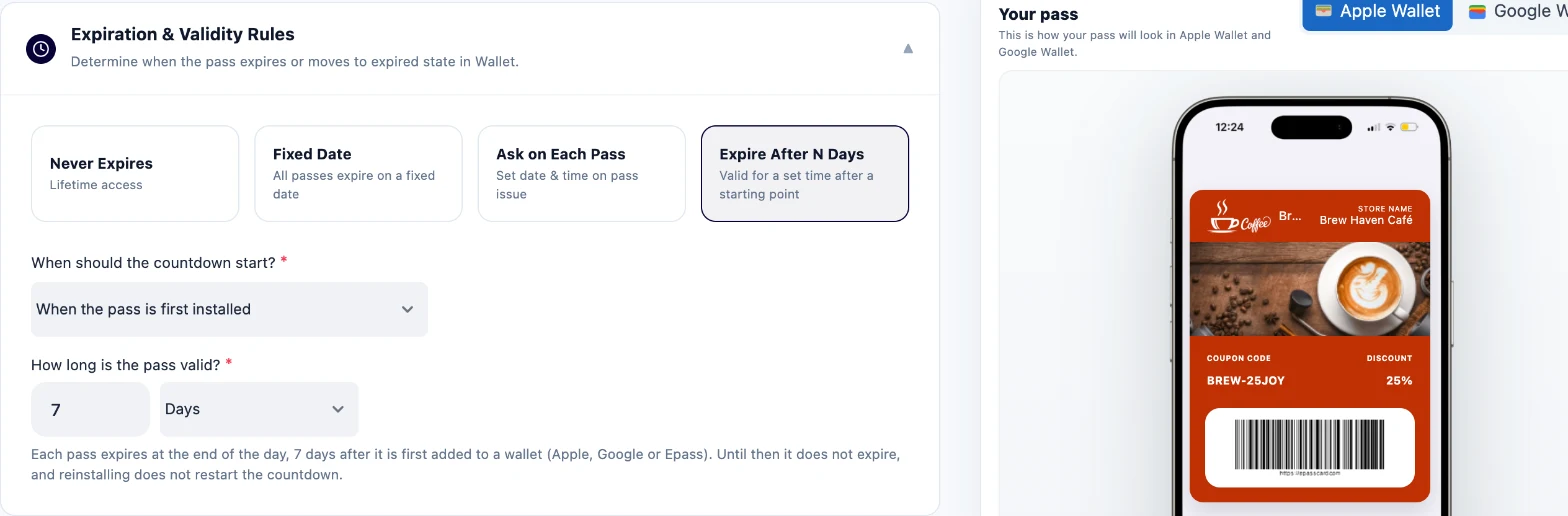
- Pair push with expiry. For coupons, set the end date on the pass and send one reminder a day or two before. You can set a fixed date or a number of days after the customer adds the card, as shown below.
What wallet push cannot do
Wallet push only reaches people who saved your card. It is not a way to reach new people. It also has limits you should plan for.
- The pass must be saved and active. If someone removed your card, the message does not reach them.
- Customers stay in control. They can turn off notifications or remove the pass at any time. On Android, this is under Wallet settings and Manage Wallet notifications (Google Wallet Help).
- Consent and privacy rules still apply. Send messages about the card and your offer. Do not put private details in a message, because it can show on a lock screen.
- Google needs approval first. Until Google approves your account once, Google Wallet passes work in demo mode on your own Google account.
- Deleting is not switching off. Deleting a pass in EpassCard frees its slot, but the card stays on the phone as it was. Switch a card off, or let it expire, before you delete it.
- Location alerts are separate. You can add up to 10 places so the card shows on the lock screen nearby. The holder must allow location for that to work.
Start sending wallet push messages
EpassCard sends unlimited push messages on every plan, including the Free plan with 20 live passes and no payment card. You can issue loyalty cards, stamp cards, membership cards, coupons, gift cards and event tickets from one account. See pricing for larger plans, or start free and send your first message today.
Frequently asked questions
Do customers need an app to get wallet push notifications?
No. The message comes from the pass in Apple Wallet or Google Wallet, which are already on the phone. The customer only needs to have saved your card and kept notifications on.
Are push notifications free in EpassCard?
Yes. Push messages are unlimited on every EpassCard plan, including the Free plan. Google still limits each pass to three message alerts in 24 hours, whatever plan you use.
Why did my Google Wallet push notification not arrive?
Check three things. Has that pass already had three alerts in the last 24 hours? Google allows no more, and design edits count. Has the customer turned off Wallet notifications? Is the pass still saved on their phone? Also note that until Google approves your Google Wallet account, passes work only in demo mode, so customers cannot save them yet.
Can I schedule a wallet push notification?
Yes. On the Send notification page, untick Send notification immediately, then pick a Publication Date & Time and a Time Zone. Choose the time zone where your customers are.
How do customers stop wallet notifications?
They can turn off notifications in their phone or Wallet settings, or remove your pass. On Android, it is in Google Wallet under Wallet settings and Manage Wallet notifications.